Tutorial Producer
Record your screen, narrate as you go, and turn it into a polished tutorial in one app.
Version 1.0, updated October 19, 2026
Buy
$29.99 One-time payment. The same price on every system.Sold in Microsoft App Store directly on your PC with Windows operating system.
Buy for Windows (opens in a new tab)Not available yet
Coming soonScreenshots
About this app
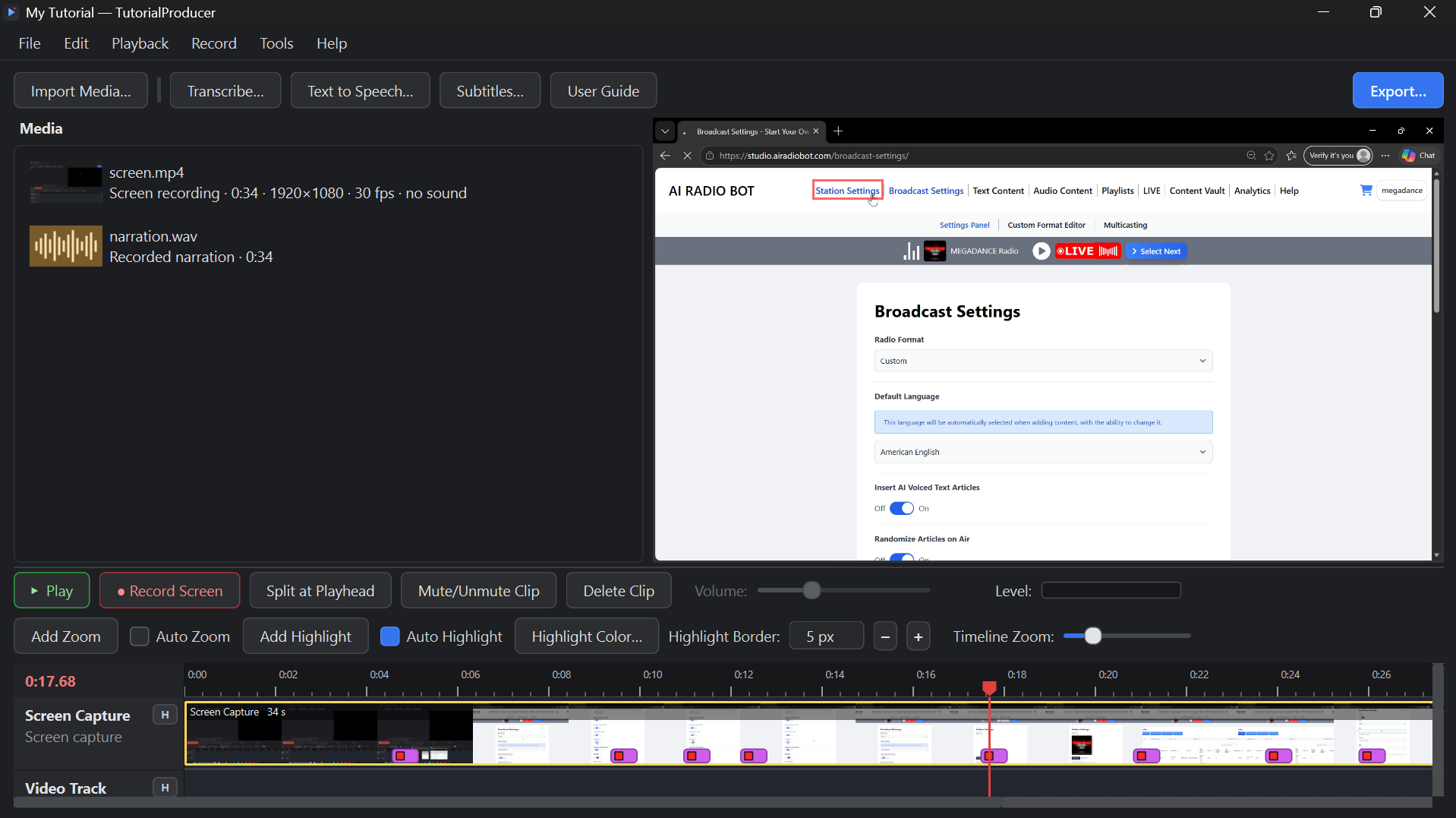
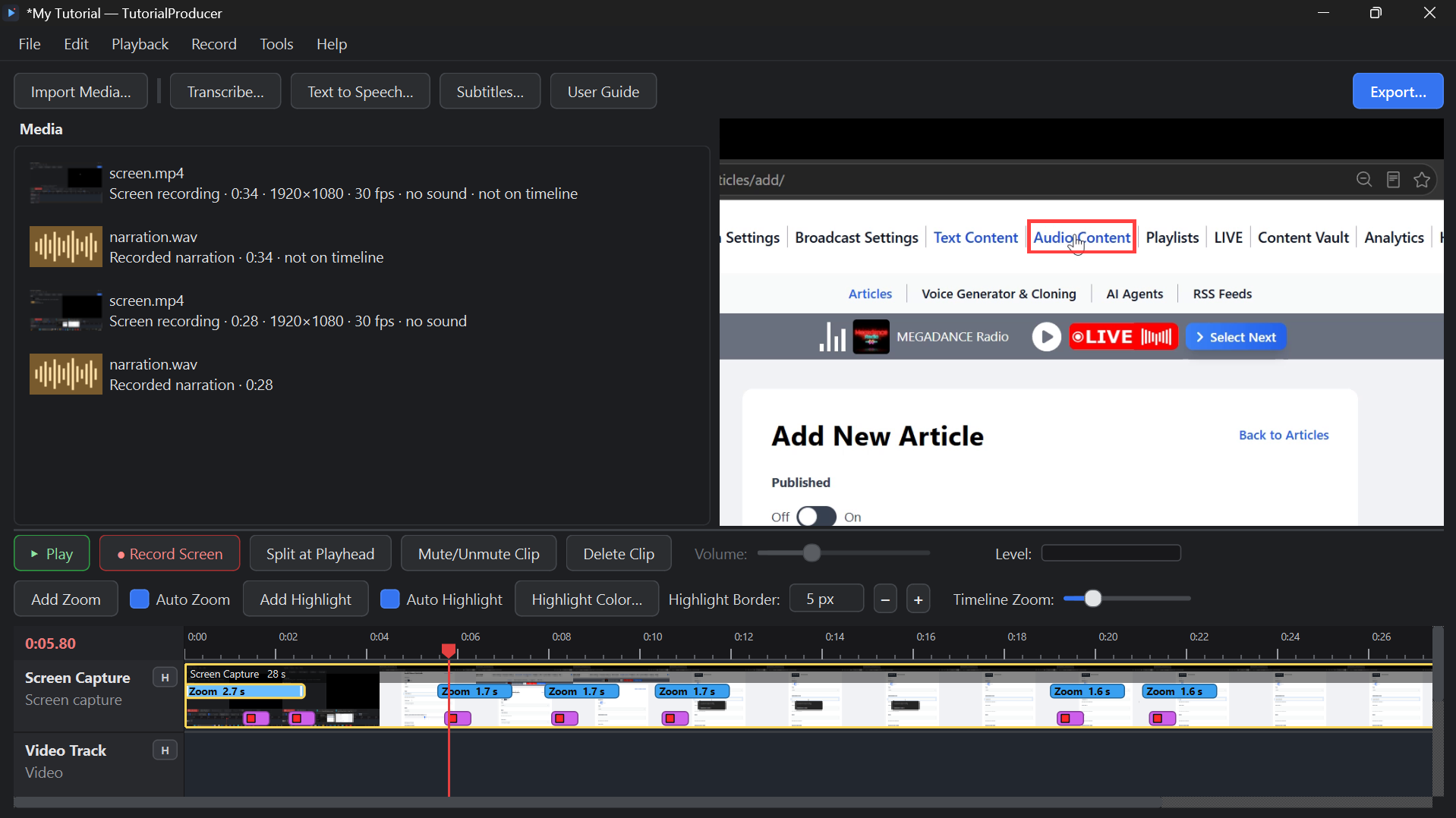
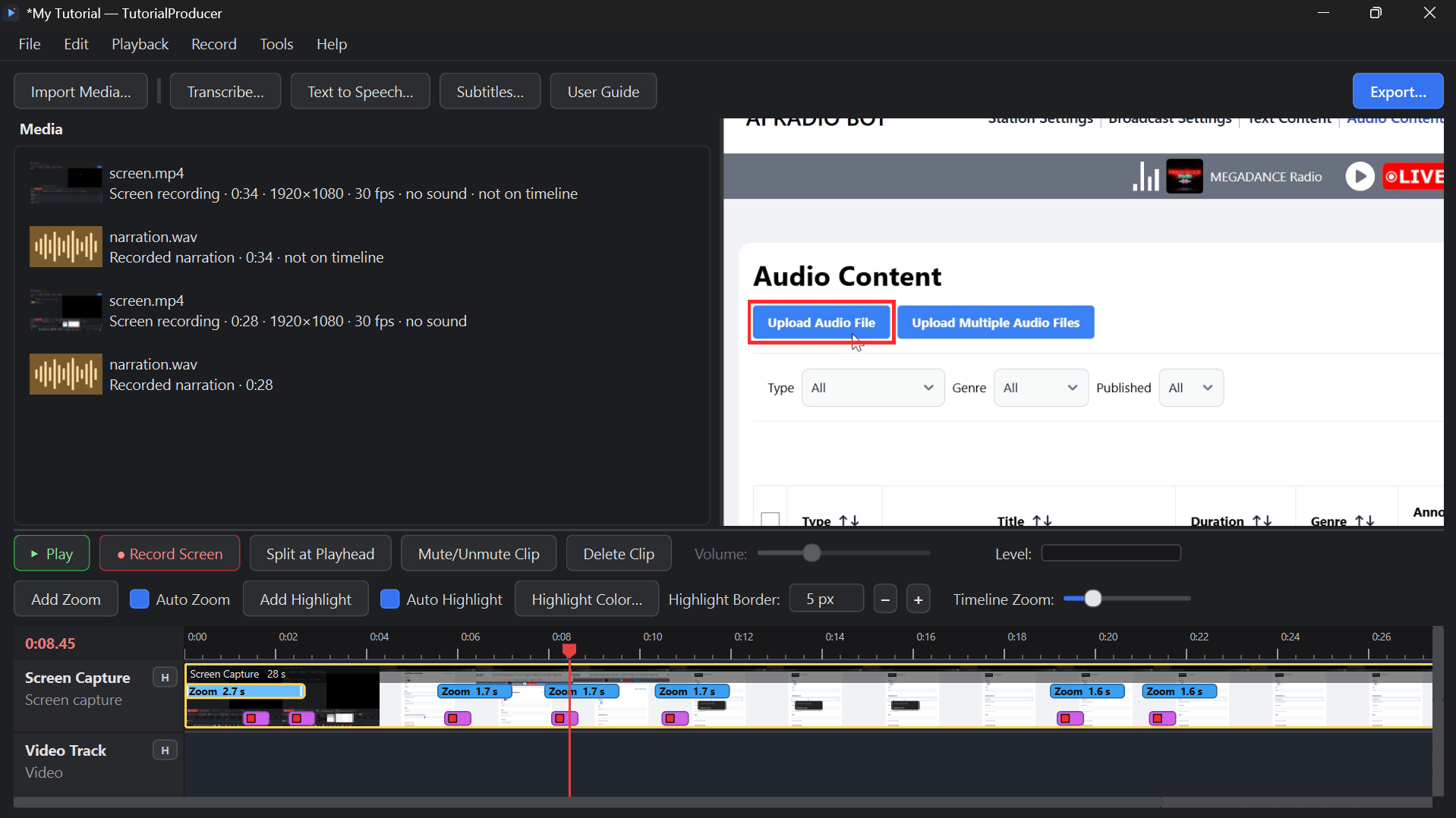
Most screen recorders stop at the recording, and most video editors don’t know anything about tutorials. Tutorial Producer does both. Record a walkthrough of any program or website while you explain it into your microphone. Tutorial Producer then makes it easy to follow: it zooms in on the parts of the screen you click and highlights the buttons and menus you use. Viewers never lose track of where to look, and you don’t spend hours adding those effects by hand.
When the recording is done, it’s already on the timeline and ready to edit, cut, add to and export.
Record your screen and narration together
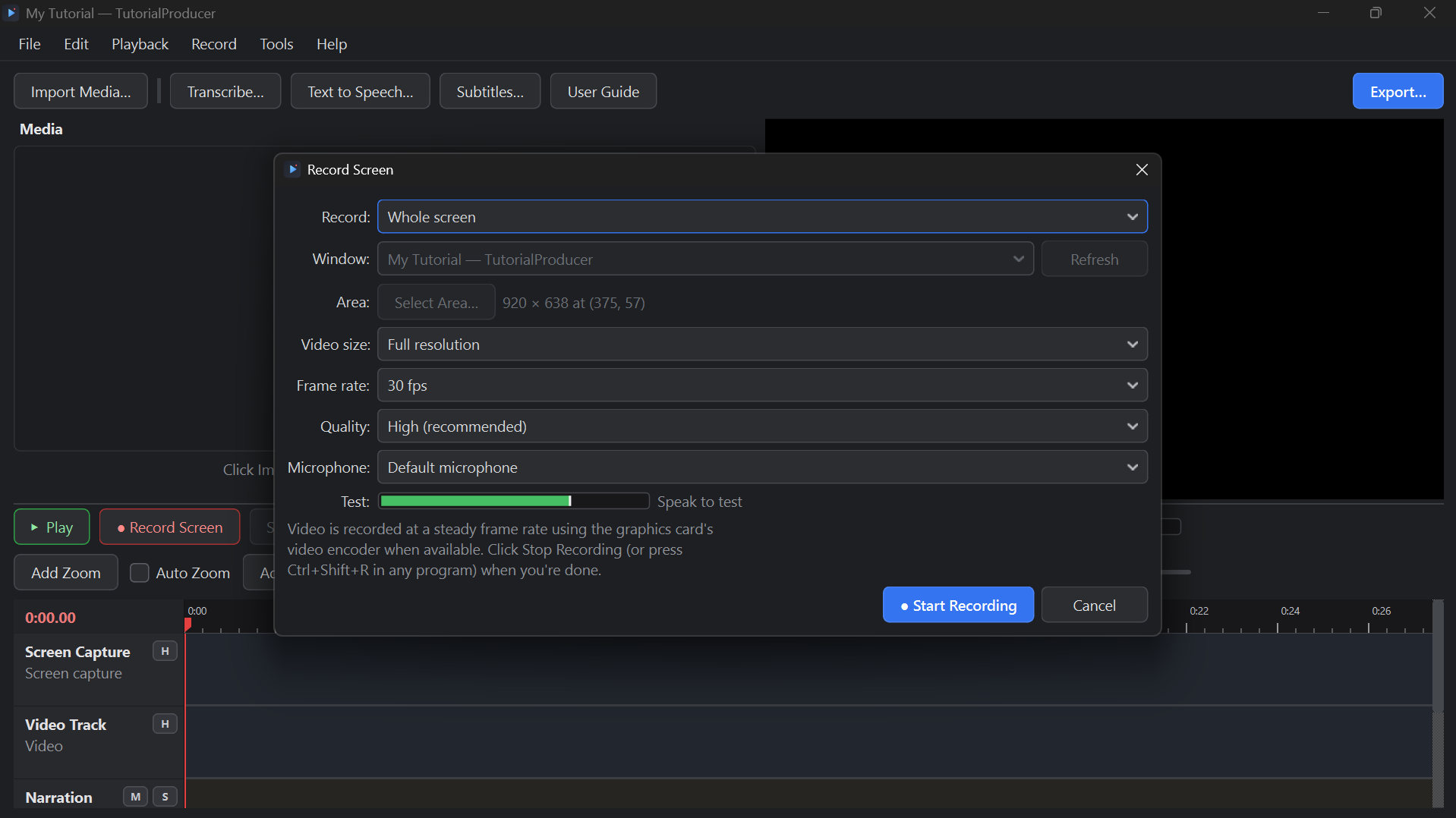
- What to record: the whole screen, a single window, or an area you drag out. A frame shows exactly what’s being recorded, and the rest of the screen is dimmed.
- Narration: your voice is recorded from your microphone at the same time, on its own Narration track, so you can edit or replace it separately. Each recording’s volume is evened out automatically.
- Recording settings: choose the video size, frame rate and quality.
- Hotkey: start and stop from any program with Ctrl+Shift+R, so you never have to switch back to Tutorial Producer mid-take.
Automatic zoom and highlight on every click
- Auto Zoom smoothly zooms in on the spot you clicked, then eases back out.
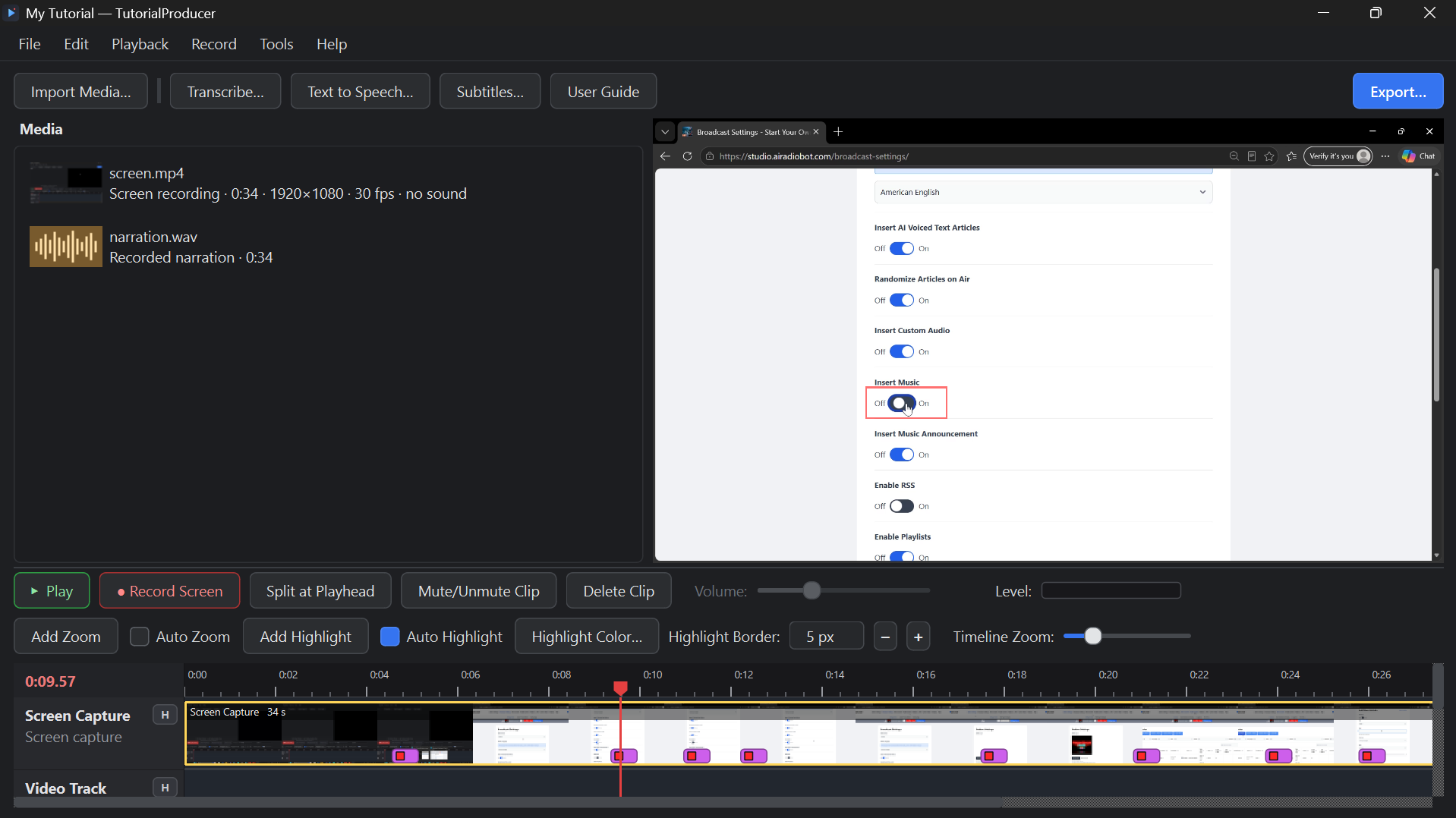
- Auto Highlight draws a shape around what you clicked, so the important button stands out.
- Every effect appears as a block on the timeline. Move it, change its length, adjust its depth or color, or delete it.
- Add your own zooms and highlights anywhere, in rectangle, rounded rectangle, circle, arrow or spotlight shapes, with an optional pulse.
A complete video editor
- Import any video or audio: intros, product footage, webcam clips, music, sound effects. Everything lives in a Media library, and you drag what you need onto the timeline.
- As many tracks as you need: Screen Capture, Video, Narration, Audio and Subtitles tracks, each with its own controls. Stack video tracks to layer one picture over another.
- Fast editing: split at the playhead, drag either end of a clip to trim it (and drag back out to restore it), and drag clips to reorder them. Clips snap neatly into place, and every change can be undone.
- Picture-in-picture: show a webcam or a second video as a small inset over your screen recording, sized and placed where you want.
- Transitions: choose how one clip leads into the next: Fade In, Fade Out, Wash Out, Cross Dissolve, Ripple Dissolve, Jump Cut, Cutaway, Iris In and Iris Out.
- What you see is what you get: the preview shows zooms, highlights, picture-in-picture, transitions and subtitles exactly as they’ll appear in the finished video.
Audio tools
- Separate tracks for narration, a video’s own sound, music and effects, each with Mute, Solo and its own volume.
- Volume line on every audio clip: add points to raise or lower the volume exactly where you want. For example, lower the music while you speak and bring it back up after.
- Fades: fade-in and fade-out handles on every audio clip.
- Normalize Volume: brings any clip to a standard loudness in one click, so imported audio matches your narration.
- Matched levels: what you hear while editing is exactly what’s in the exported file.
Narration without a microphone, too
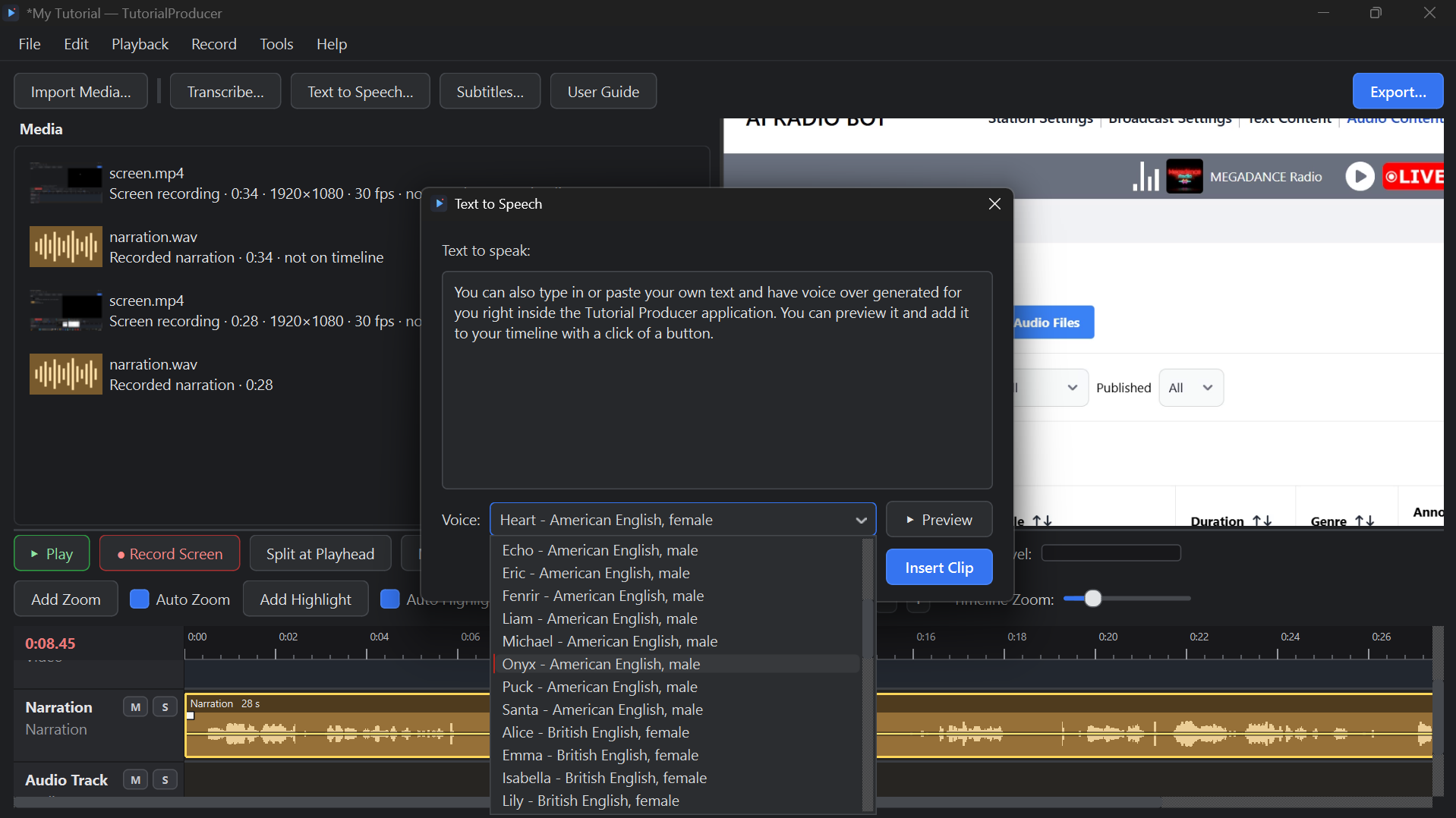
- Text to Speech: type your script, choose from natural-sounding voices, and the narration is placed on your timeline. Edit the text later and regenerate it whenever you like.
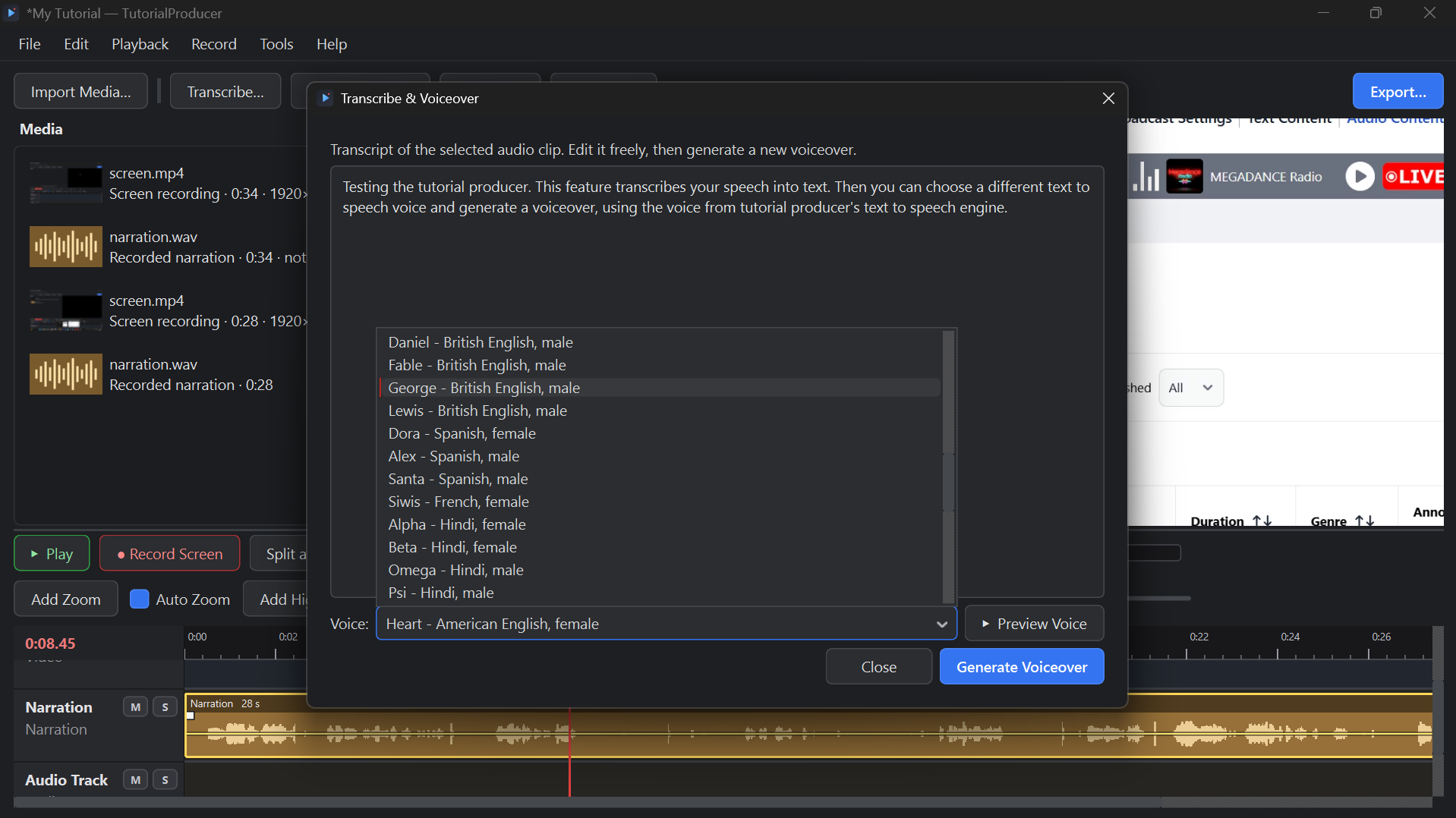
- Transcribe & Voiceover: turn a recorded explanation into text, fix the wording, and replace your voice with a clean AI voice, without re-recording.
Subtitles in one click
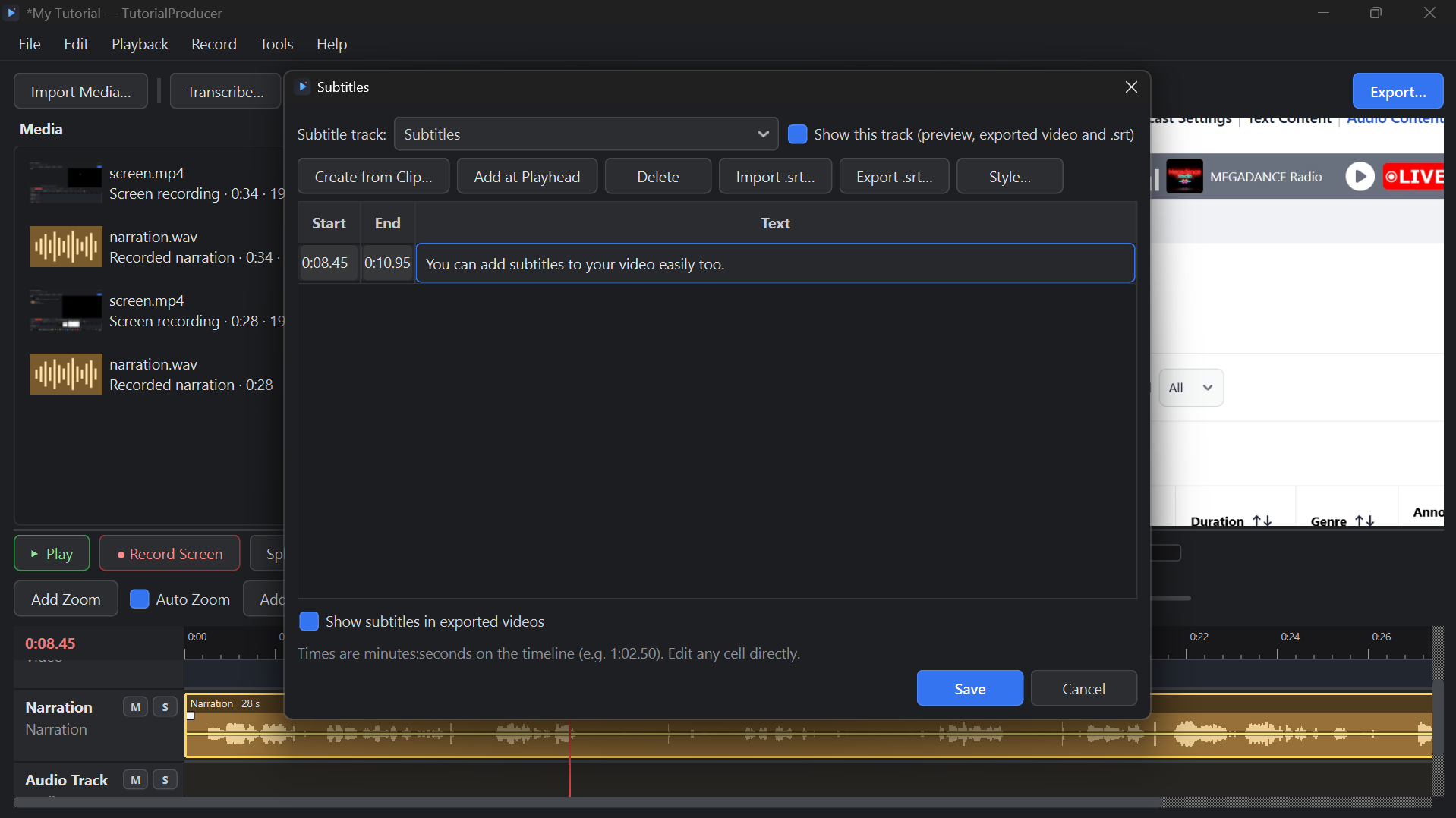
- Automatic subtitles: made from your narration, a Text to Speech script or any audio clip, timed to the speech.
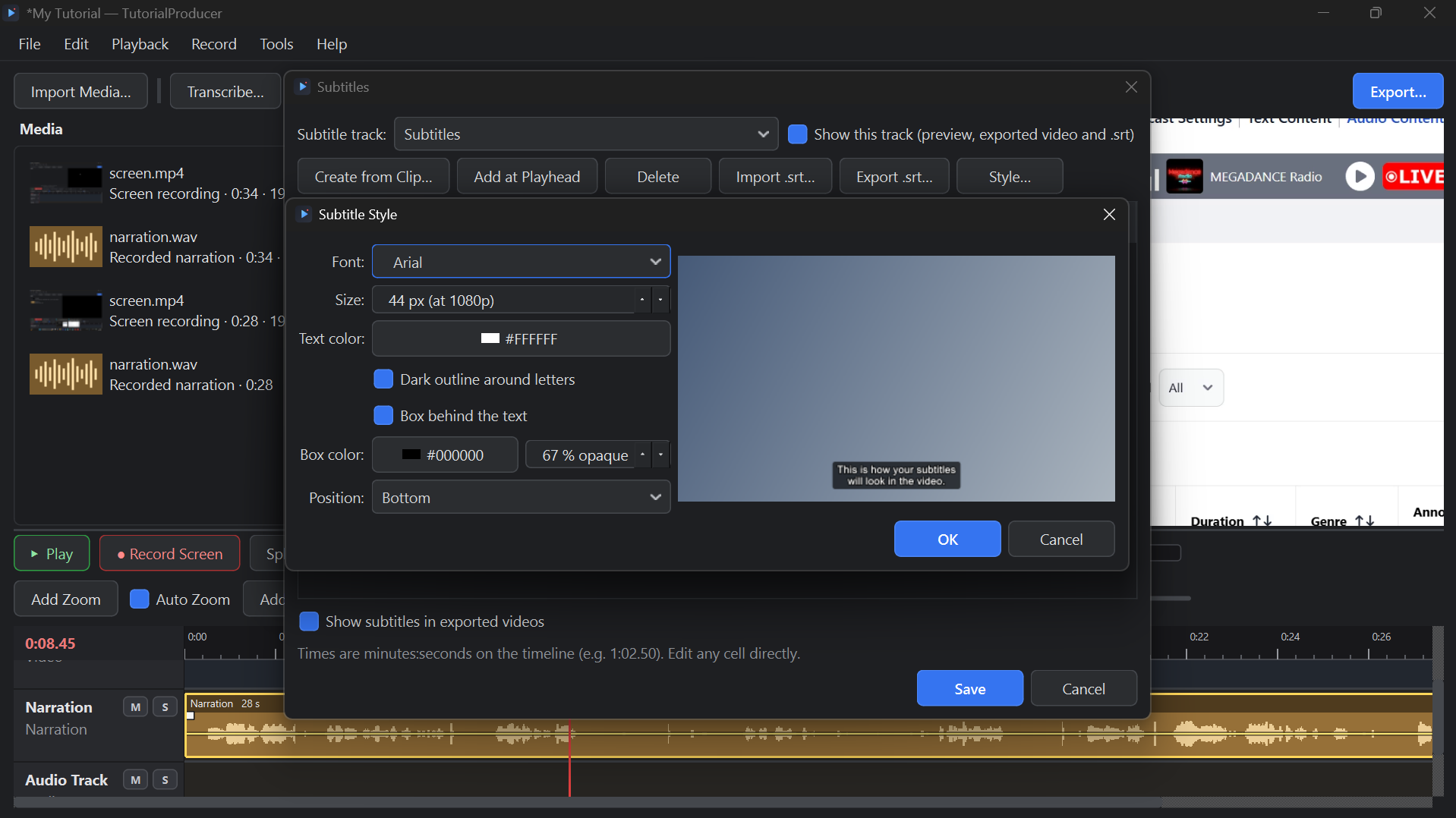
- Editing and styling: edit the lines and choose the font, colors, background box and position.
- Separate subtitle tracks: keep dialogue and narration apart, or add a second language.
- Output: burn subtitles into the video, or save them as .srt, .vtt or a plain transcript.
Export
- Video: MP4 or MOV, from 480p up to 4K, at your footage’s own frame rate, with fast graphics-card encoding where available.
- Audio: export the soundtrack on its own (WAV or M4A), or save a single voice clip.
System requirements
- Windows: Windows 10 (version 1809 or later) or Windows 11, 64-bit.
- macOS: macOS 12.3 Monterey or later. The first time you record, macOS asks you to allow screen recording, the microphone and accessibility access (the last one is what lets TutorialProducer see your clicks for Auto Zoom and Auto Highlight).
- Ubuntu: Ubuntu 24.04 LTS, 64-bit (x86-64). Screen recording needs the “Ubuntu on Xorg” session, which you choose from the gear icon on the login screen. Under Ubuntu’s default Wayland session the app opens and edits normally, but it can’t record the screen.
- All systems: 8 GB of memory recommended, about 1 GB of disk space for the app and its voice and speech models, and a microphone for narration. A graphics card speeds up exporting but isn’t required.
Buy once. No subscription.